
Get the most out of your online events
Before you dive in ➡️ Download the free LinkedIn Event Set-up Checklist ⬅️
Masterclasses, webinars, workshops, sprints and challenges - all brilliant tools to give your audience an actual taste of what you can do together once they become a client. 85% of customers are more likely to purchase after attending a live event.
But getting people through the door is hard. Getting them to sign up to your event is step one. Arguably, the easiest step.
Then comes the question: will they actually show up? The industry standard average show-up rate for free events is anywhere between 30% and 60%. Which is why I’m going to show you how you can use LinkedIn to:
Get more visibility on your event and invite 1.000 people a week directly.
Have more people register for your online events.
Increase the show-up rate of your event.
How to set up a LinkedIn event?
(If this isn’t your first rodeo, feel free to skip this section and go straight to the next)
LinkedIn Events can be created for off-platform events as well as LinkedIn Lives. So if you’re hosting your event on Zoom, Google Meet, Teams or any other platform, you can still follow this guide.
Here’s what you will need to get started:
Event’s title and time
Branded design for your event in size 16:9
A landing page where people can input their information and sign up.
A short description of what the event is about and what your attendees can expect
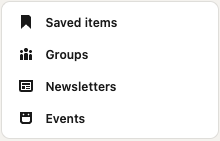
On your desktop, open LinkedIn and on the left side, look for this and click “Events”:It will bring up a new page with events you hosted before or you signed up for. On the top of the page on the right, click: “Create an event”
This is what you should see next:
It will bring up a new page with events you hosted before or you signed up for. On the top of the page on the right, click: “Create an event”
This is what you should see next:
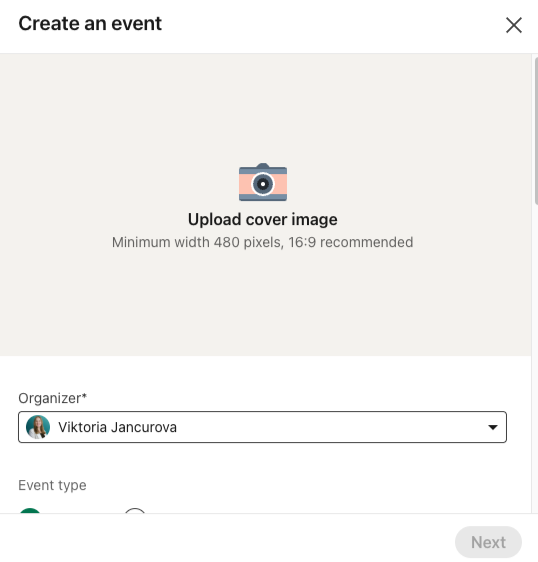
The next step is filling in all the info and uploading the design you prepared beforehand.
If you’re hosting your event off-platform (not a LinkedIn Live), make sure that in the “Event format” you select the option “External event link” and then add the link to your landing page/sign-up page there.
This step will create your event, which you can always find in the “Events” section.
Congrats! Your event is live and ready!
Download the free LinkedIn Event Set-up Checklist.
How can you invite over 1.000 people to your event weekly?
LinkedIn allows its users (us) to invite 1.000 connections a week to their events. Use these invites. I’d always advise giving yourself a MINIMUM of 2 weeks to promote your events on LinkedIn. Depending on how important this event is to your strategy, you might want to give yourself more time, like 3-4 weeks instead.
On your event page, you should see these options on the left side of the screen:
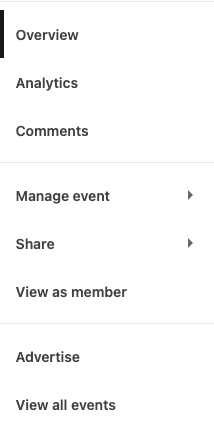
Click on “Share” and then “Invite”
The next pop-up that appears is a list of all your connections that you can invite to your event. Remember, you can do up to 1.000 invites a week, and I highly recommend getting as close to that number as you can. Don’t worry about sending all the thousand invites in one sitting, as LinkedIn does not penalise you for doing this.
How to make sure the people you invite actually register on your landing page?
This is when manual work comes in (I highly discourage you from automating any LinkedIn tasks as the platform’s guidelines strictly prohibid 3rd party softwares).
But don’t worry, I’ll make it as simple as humanly possible for you.
Once you send your invites, wait for a couple of days and then carve out about 30 minutes in your calendar for this.
On the event’s page, in the middle, click on “Show in-depth analytics”, then look for “see all registrants”
This will bring up a list of everyone who has accepted your invite to your event. Now, go through the list and message every person on it. Here’s the message I usually send:
-
Hello NAME,
Thank you so much for showing interest in my free event EVENT’S NAME. To be able to join us live, please make sure you register using this link: LINK TO THE SIGN UP PAGE.
Hope to see you there 🙌🏻
-
Super simple yet a very effective way to get more sign-ups to your event.
People forget. They click “accept” and often don’t even make it to the event page to see whether the event they signed up for is a LinkedIn Live or whether they need to do anything. A message like this serves as a reminder, gives them the opportunity to actually take the necessary steps, and often opens the door to new conversations.
How to increase the show-up rate of your event?
We’re going to do something very similar to what I showed you in the previous step. This is done best if you do it around one or two hours before your live event.
Open the list of people who have registered for your event (not the LinkedIn list). The list of people who went through the registration process through your sign-up page.
Now, you might have an email already set up that will remind them that the event is happening on that day. But, as we all know, people are busy and often miss their emails. So this is about coming in from different angles.
Message everyone who has registered for your event and remind them that you’re going live soon. A simple message like the one below will do all the magic:
-
Hi NAME,
You registered for the EVENT’S NAME, and this is just a quick reminder that I’m going live in 60-minutes!
Can’t wait to see you there!
-
You might want to include a sweet incentive for people who join you live to increase the chances of them being there. For example, a giveaway, no replay, ask your questions live, a freebie to everyone who makes it live or similar.
And now onto the final step: Go live and enjoy!
You now have a LinkedIn event promotion strategy for your online event. It has a few steps that you need to go through, but once you do it once, it will become a habit for any future events too, because this system is REPEATABLE.
Download the free ➡️ LinkedIn Event Set-up Checklist ⬅️!
Got a question? No problem! Message me Viktoria Jancurova 💌